Quantum Network Controller
Read-only overview of accessible quantum frequencies, buffers and known equipment across dimensions.
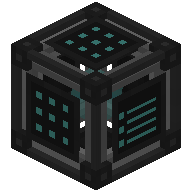
| Type | Machine (read-only) |
| Added in | 0.6 (screen redesigned in 1.2.0) |
| Size | 1 block |
| Energy | None |
| Upgrades | None |
| Side configuration | No, read-only screen (deliberate exception, like the Quantum Digital Miner) |
What it does
Section titled “What it does”A read-only screen onto every quantum frequency you can access: your own Public and Private ones, and any Trusted frequency whose owner currently trusts you. Pick a frequency and a resource (Energy, Items, Fluids, Chemicals, Heat or Radiation) and the screen draws the whole picture in one glance: what goes in, what the frequency holds (its buffer), what goes out, and which kinds of device take it out.
It never configures anything: no side configuration, no redstone control, no upgrades and no energy of its own. It only reads. The same screen is also available in your hand with the Quantum Network Tablet.
Crafting
Section titled “Crafting”


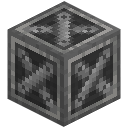


- 2 × any Glass Pane
- 1 × any Advanced Control Circuit
- 2 × any Infused Alloy
- 1 × Steel Casing
- 2 × any Steel Ingot
- 1 × any Redstone Dust
To turn a Controller into a Quantum Network Tablet (and back), see that page.
Getting started
Section titled “Getting started”- Craft the Controller.
- Place it anywhere: it does not need to touch the network it reads, and reading never loads a chunk.
- Right-click to open its screen.
- Click the frequency box at the top left, or the button next to it, to open the list of every frequency you can access, and pick one.
- Click a resource tab (Energy, Items, Fluids, Chemicals, Heat, Radiation) to see that resource’s flows.
- Read the picture from left to right: Input, BUFFER, Output; the families of devices that take the resource out are listed underneath.
The interface
Section titled “The interface”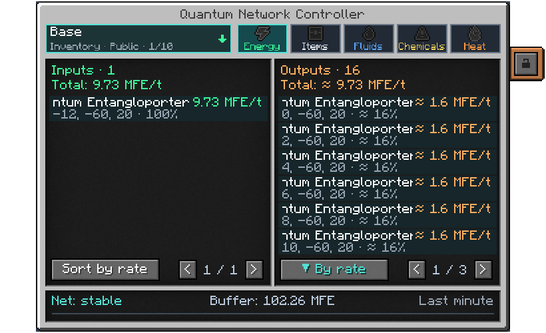
The screen is 400 × 270 pixels, which is tall: if it does not fit your window (for example at GUI scale 3 in a 1280 × 720 window), the top is kept on screen and the bottom is cut; lower the GUI scale to see all of it.
- Frequency box (top left): the name of the frequency you are reading and, under it, its security mode and its owner. Hover it for its type (Inventory, QIO or Teleporter) and its place in your list (for example “2/5”). With nothing accessible it says “No accessible network”.
- Frequency list (the button right of the box, or a click on the box): opens a window titled “Frequencies · N” with the number of frequencies, listing every frequency you can access, seven at a time, paged with ‹ ›. Each entry shows its name, then its type, mode and owner; a name too long for its row scrolls, and the whole of it is in the tooltip. Click one to pick it.
- Six resource tabs, in this order: Energy, Items, Fluids, Chemicals, Heat, Radiation. Each carries Mekanism’s own icon for the resource; the selected one is lit in teal. The Chemicals tab holds every chemical except the radioactive ones, which have their own Radiation tab (Spent Nuclear Waste and the other radioactive chemicals); they are never added together. Hover either tab to see which chemicals it holds.
- Balance line (a thin band under the tabs): “Balance: rate / Reserve rising”, “Reserve falling” or “Reserve steady”, for example “Balance: +120 J/t / Reserve rising”. “Balance: measuring…” shows for the first moments after opening the screen or changing frequency or tab, and “Balance: ?” when there is no figure. The balance is measured on the frequency’s buffer itself, so it stays exact whatever approximations the rest of the screen carries.
- Input (left panel): the total rate at which devices are sending into the frequency. Hover it for the families that send and their rates.
- BUFFER (middle panel): what the frequency currently holds of that resource.
- Output (right panel): the total rate at which devices take the resource out. Hover it for the families and their rates. The arrows between the three panels point from Input to Buffer to Output.
- Outputs by family (cards under the panels): one card for each family of devices that takes the resource out, the busiest first, four to a page. A card shows the family’s name (Entangloporters, Basic, Advanced, Elite and Ultimate Receivers, Quantum Digital Miners, Quantum Chargepads), its rate, its share of the total as a percentage and a bar in the family’s colour (the four Receivers use Mekanism’s tier colours). Hover a card for the number of devices in the family. Page through the cards with the < and > buttons at the bottom right; the bottom line says how many families there are (“3 families / share of total”) with the page number beside the buttons.
- For Heat, where no flow is measured, the cards are replaced by “No flow is measured for heat”. QIO and Teleporter frequencies have no Input/Buffer/Output picture: the screen says “Not applicable” (only Inventory frequencies are drawn).
- Mekanism’s security tab sits on the side of the screen: it belongs to the block, or to the Tablet when you open the screen from your hand.
The marks « ≈ », « ≥ » and « ? »
Section titled “The marks « ≈ », « ≥ » and « ? »”Some numbers are exact and some are not; the screen always marks which.
- No mark: counted directly. Every Radioactive Quantum Entangloporter’s radioactive ejection and every Quantum Energy Receiver’s draw are counted, and so is whatever a Quantum Entangloporter moves through its own configured ports.
- ≈: estimated. What Mekanism’s own Quantum Entangloporters eject to their connected neighbours by themselves is not measured directly: the Controller works it out from the buffer’s overall balance and shares that estimate between the Entangloporters that are ejecting, the way Mekanism spreads it. Hover for ”≈ estimated: Mekanism ejects by itself”.
- ≥: at least. Some devices could not be measured, so the true total is higher.
- ?: unknown, the figure cannot be measured. Hover for ”? unknown: this figure cannot be measured”.
- “N devices not measured” (amber, above the cards on the right): N devices of the family could not be read, so the shares are not given as a percentage but as “?” (“No share: some devices are not measured” in the tooltip).
- “Chunk unloaded”: a device you own is in a chunk that is not loaded at the moment.
The first figures take a couple of seconds to appear after opening the screen or changing the frequency or the tab; until then the screen shows “…”. The screen asks for fresh figures about every two seconds while it is open, a little faster for a moment after you change something, and never logs anything in the background.
What the Controller cannot see
Section titled “What the Controller cannot see”The Controller never loads a chunk to find or read equipment. It keeps a catalogue of the quantum devices it has seen in a loaded chunk. A device that is not currently loaded and accessible to you never counts toward the rates, the shares or the balance shown: only live, reachable devices are measured. A device you own in an unloaded chunk is counted as unloaded; one you do not own is not shown at all, so that nobody can learn where someone else’s base is.
Automation
Section titled “Automation”None: this block has no side configuration to set, no redstone control, no upgrades and no energy. Breaking it loses nothing.
Configuration
Section titled “Configuration”No dedicated section in mekanismengineering-server.toml.
Tips and troubleshooting
Section titled “Tips and troubleshooting”- No accessible network: you do not currently have access to any frequency; create or link one from a Quantum Entangloporter, a Receiver or another quantum block first.
- A device you expect is missing: its chunk is probably not loaded right now, or it is not accessible to you; the Controller never force-loads chunks to check.
- Every family shows “?” instead of a percentage: at least one device could not be measured; read the amber line above the cards.
- The Radiation tab is empty on a frequency that carries no radioactive chemical; use the Chemicals tab for everything else.
In-game texts
Section titled “In-game texts”What the game itself shows for this item: the description under Shift, the tooltips and the JEI information page, word for word.
Quantum Network Controller
- Description (hold Shift)
- Read-only overview of accessible quantum frequencies, buffers and known equipment across dimensions.
- JEI · Role
- Shows the stocks, devices and flows of the networks you can access.
- JEI · Supply
- A frequency you can access, chosen in the interface.
- JEI · Result
- Network stocks, inputs, outputs, totals and loaded devices.
- JEI · Good to know
- A monitor: no energy use and no stock of its own.
- JEI · Good to know
- The selection belongs to each player. Unloaded devices are not counted as visible.
- JEI · Good to know
- Alone in the crafting grid it becomes a Quantum Network Tablet, keeping its owner, security mode and name.
Written from the mod's own wiki and data files (05759a70, 2026-11-07).Mod v1.3 for Minecraft 1.21.1 (NeoForge, Mekanism 1.21.1-10.7.19.85) and Minecraft 1.20.1 (NeoForge, Mekanism 1.20.1-10.4.16.80).Block and item pictures are drawn from the game's models and textures; Mekanism's are under the MIT licence.Not an official Minecraft product, not approved by or associated with Mojang or Microsoft.